
Integration of Hello Widget and WhatsApp Chatbot with Shopify Store
This documentation explains how you can integrate the MSG91 Hello Chat Widget and WhatsApp Chatbot with your Shopify store. Using this integration, you can enable customer support, assisted selling, product discovery, cart management, and automated discount handling directly from your website and WhatsApp.
Part 1: Integrating the Hello Chat Widget with Shopify
Step 1: Install the MSG91 Application
Open your Shopify Store Admin Panel.
Navigate to the Apps section from the left menu.
Search for MSG91.
Install the MSG91 Application if it is not already installed.

Step 2: Configure MSG91 Auth Key
Open the MSG91 application.
Enter your MSG91 Auth Key.
Click on Save.

To find your MSG91 Auth Key, please refer to the help documentation below: https://msg91.com/help/api/where-can-i-find-my-authentication-key
Step 3: Enable the Hello Chat Widget
Inside the MSG91 application of your Shopify Store, click on Hello (Chat Widget).
Under Chat Widget Token, select the chat widget you have created in your MSG91 panel.
Click on Save.
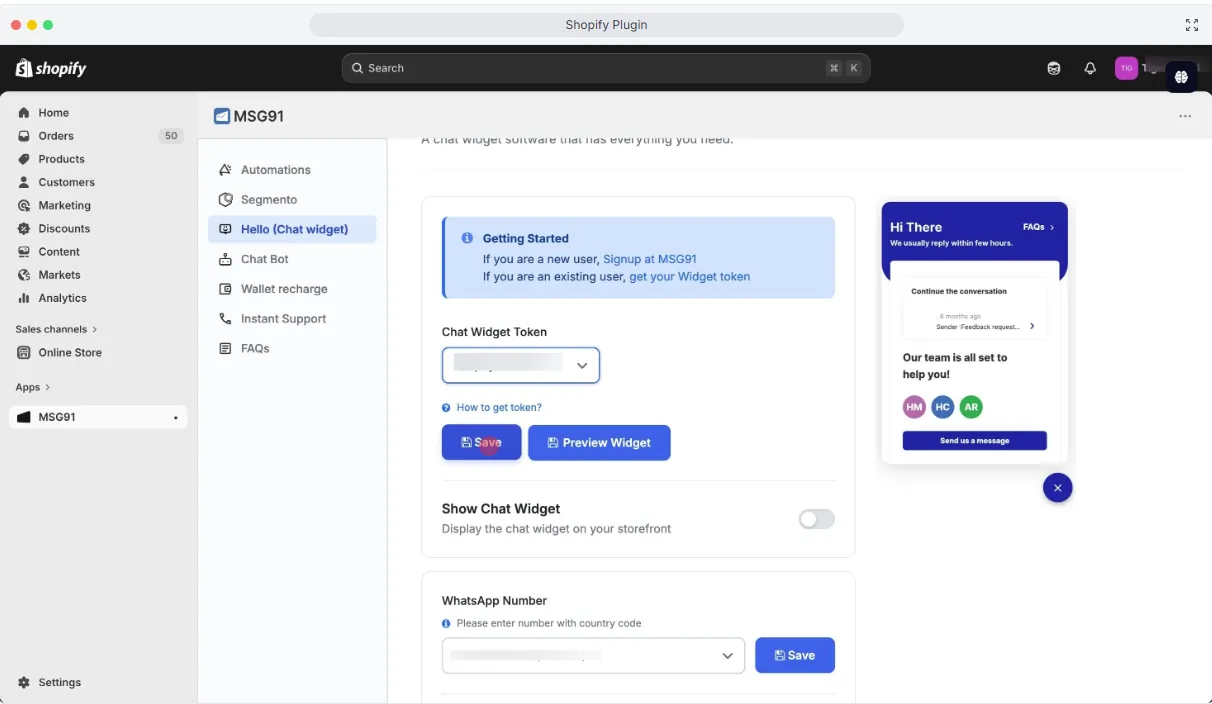
4. Enable the toggle for Show Chat Widget.
Once enabled, the Hello Chat Widget will start appearing at the bottom-right corner of your Shopify store.
Step 4: Enable the Chatbot
In the left menu bar, navigate to Chatbot.
Click on Chat Widget.
Enable the chatbot toggle.
Enter the prompt or instructions based on how you want the chatbot to respond to users.

Step 5: Enable Assisted Selling Features
Assisted Selling
Enable the Assisted Selling toggle to allow the chatbot to:
Discover products
Recommend products
Manage customer carts

Discount Support
Enable the Discount Support toggle to allow the chatbot to automatically apply discount coupons during conversations.

Part 2: Integrating the WhatsApp Chatbot with Shopify
Step 1: Open MSG91 Application
Open your Shopify Store Admin Panel.
Navigate to Apps.
Open the MSG91 Application.
If not already configured:
Enter your MSG91 Auth Key
Click on Save

Auth Key Help Documentation: https://msg91.com/help/api/where-can-i-find-my-authentication-key
Step 2: Configure WhatsApp Chatbot
Navigate to Hello (Chat Widget).
Click on Chatbot.
Under Chatbot settings, click on WhatsApp.
Select the WhatsApp number you want to use.
Enable the toggle Use Chat Widget Bot.
Click on Save.


Once configured, the WhatsApp Widget along with Hello Chat Widget will start appearing on your Shopify store.
Step 3: Configure Discounts
Navigate to the Discounts section in Shopify.
Click on Add Discount.
Enter the required discount details and save the configuration.
This will allow the chatbot to automatically apply and manage discount coupons for users.

Step 4: Test the Integration
Once the setup is completed:
Open your Shopify store
Test the Hello Chat Widget
Test the WhatsApp Chatbot
Verify product recommendations, cart handling, and discount application

Your integration is now successfully completed.
Need Assistance?
If you face any issues during the integration process, please feel free to reach out to our support team at : [email protected].
You can also schedule a meeting with our onboarding team for assistance with integrating the Hello Contact Center and WhatsApp Number with your Shopify Store using the link below: https://calendly.com/onbording-msg91/20-min-onbording
For a product demo or pricing-related queries, please contact our sales team:
Email: [email protected]
Phone / WhatsApp: +91 7049088848, +91 8889378605