
How to send SMS in Clevertap with MSG91
CleverTap Settings>Channels>SMS
Please choose a generic SMS connector.
Give it any nickname
Change request type from GET to POST
Add this URL in “HTTP Endpoint” - https://api.msg91.com/api/v2/sendsms?pluginsource=11
In Headers, please add this -
authkey | INPUT_AUTHKEY |
content-type | application/json |
accept | application/json |

This is how it looks in CleverTap 👆
Parameters -
Choose “Type” as JSON
Add this payload as it is and add your Sender ID/Header.
{
"sender":"INPUT_YOUR_HEADER",
"route":"4",
"DLT_TE_ID" :"$$TemplateID",
"campaign":"$$CampaignID",
"sms":[
{
"message":"$$Body",
"to":["$$To"],
"CRQID":"$$MessageID"
}
]
}
Enable the “Batch” checkbox and mention “sms” in Parameter Name and “500” in number of times, it should look something like this 👇.
Now copy the Delivery Report Callback URL of SMS Connector from CleverTap Panel.
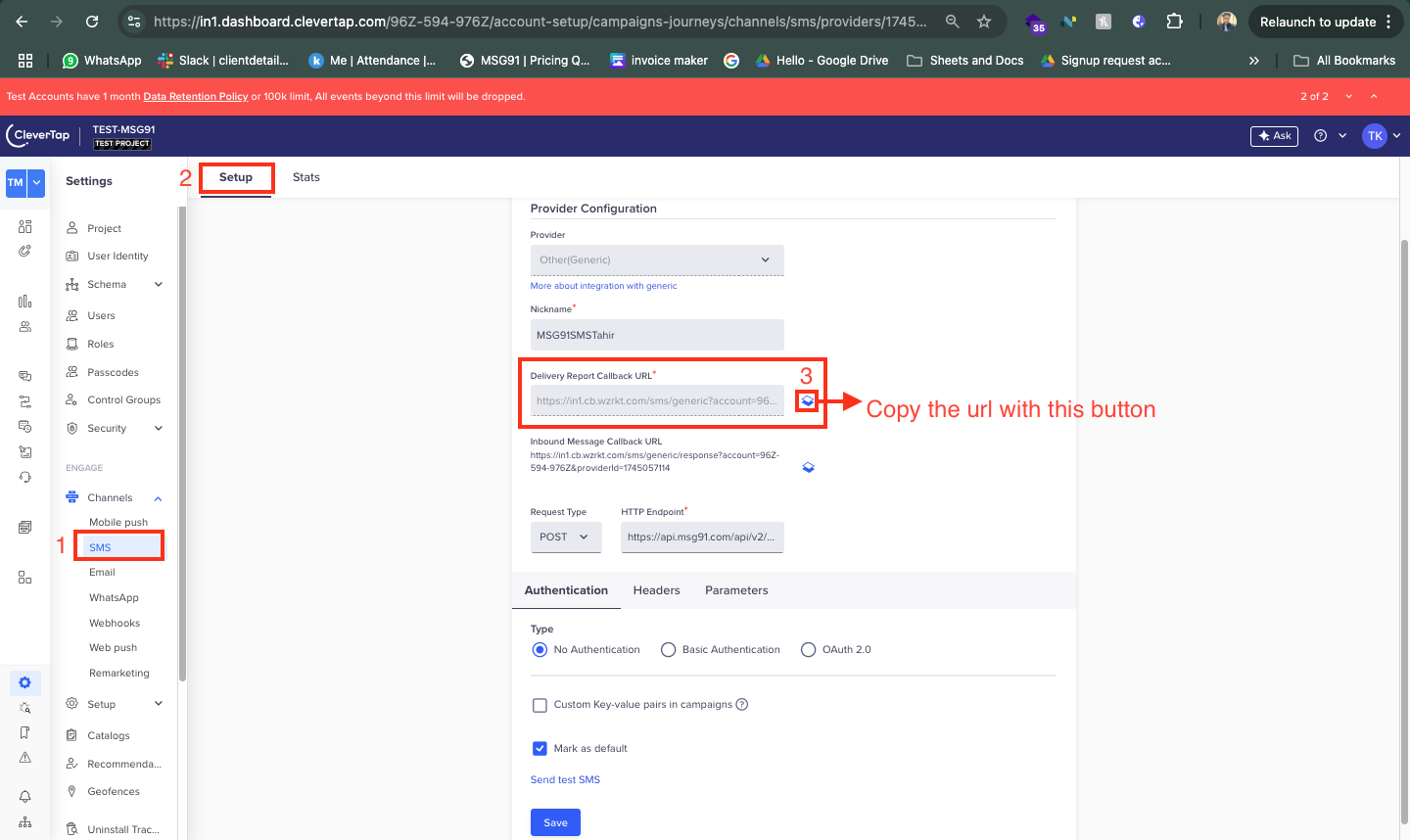
Paste the url in MSG91 SMS Webhook’s Delivery report section and change the Version to V4 and save it.
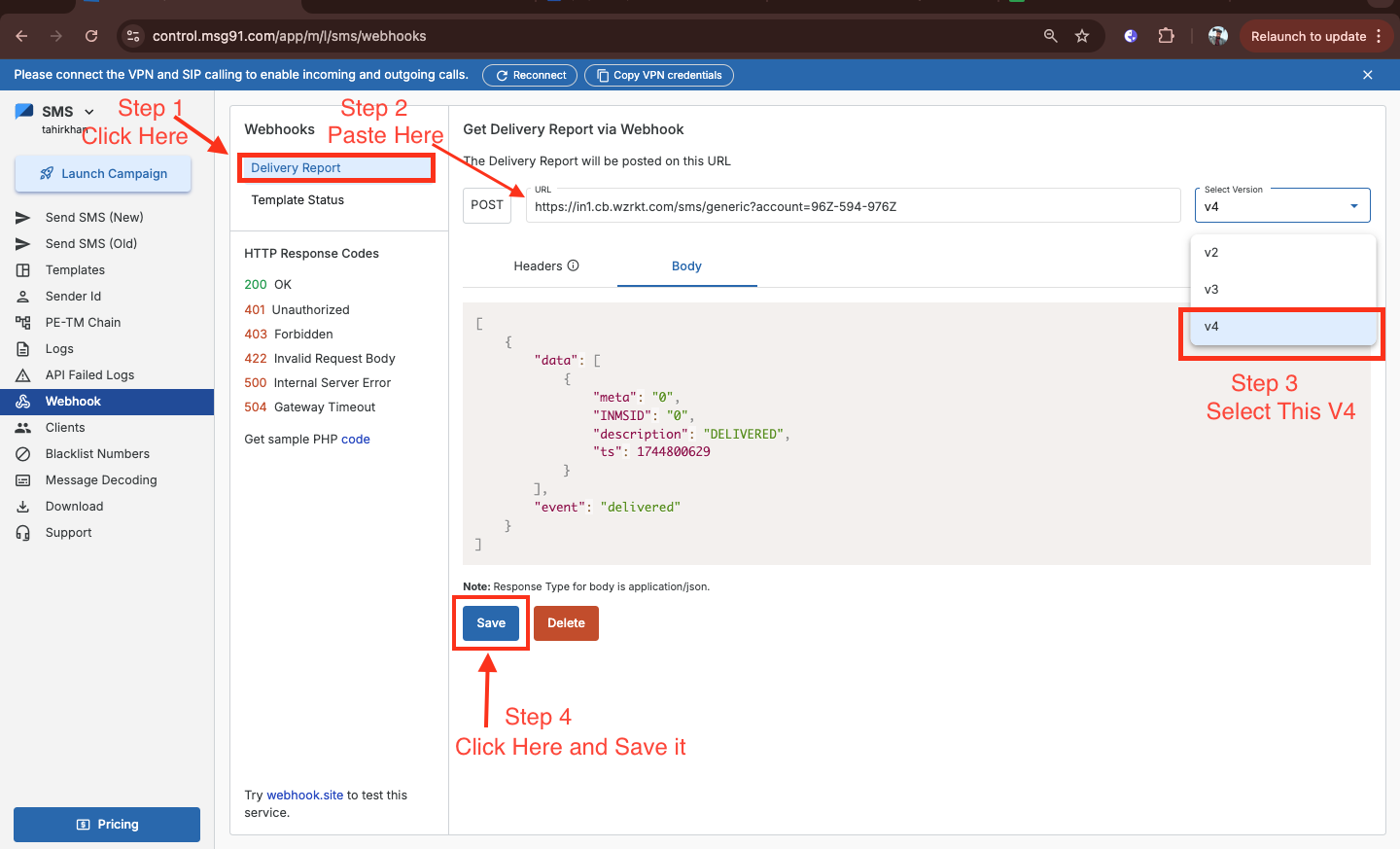
MSG91 »» SMS »» Webhook »» Delivery Report »» Paste the copied URL in Box »» Select the Version to V4 »» Click on Save button.
Contributors
This section was prepared Partners Team: [email protected]:
Hardik Menghani
Tahir Khan