
How To Integrate Gmail Inbox
GMAIL Integration Doc:
Step 1: On MSG91 Panel, go to the HELLO Service. In HELLO go to all inboxes and click on Create Inbox Button..

Step 2: Click on Email and select Create Inbox.
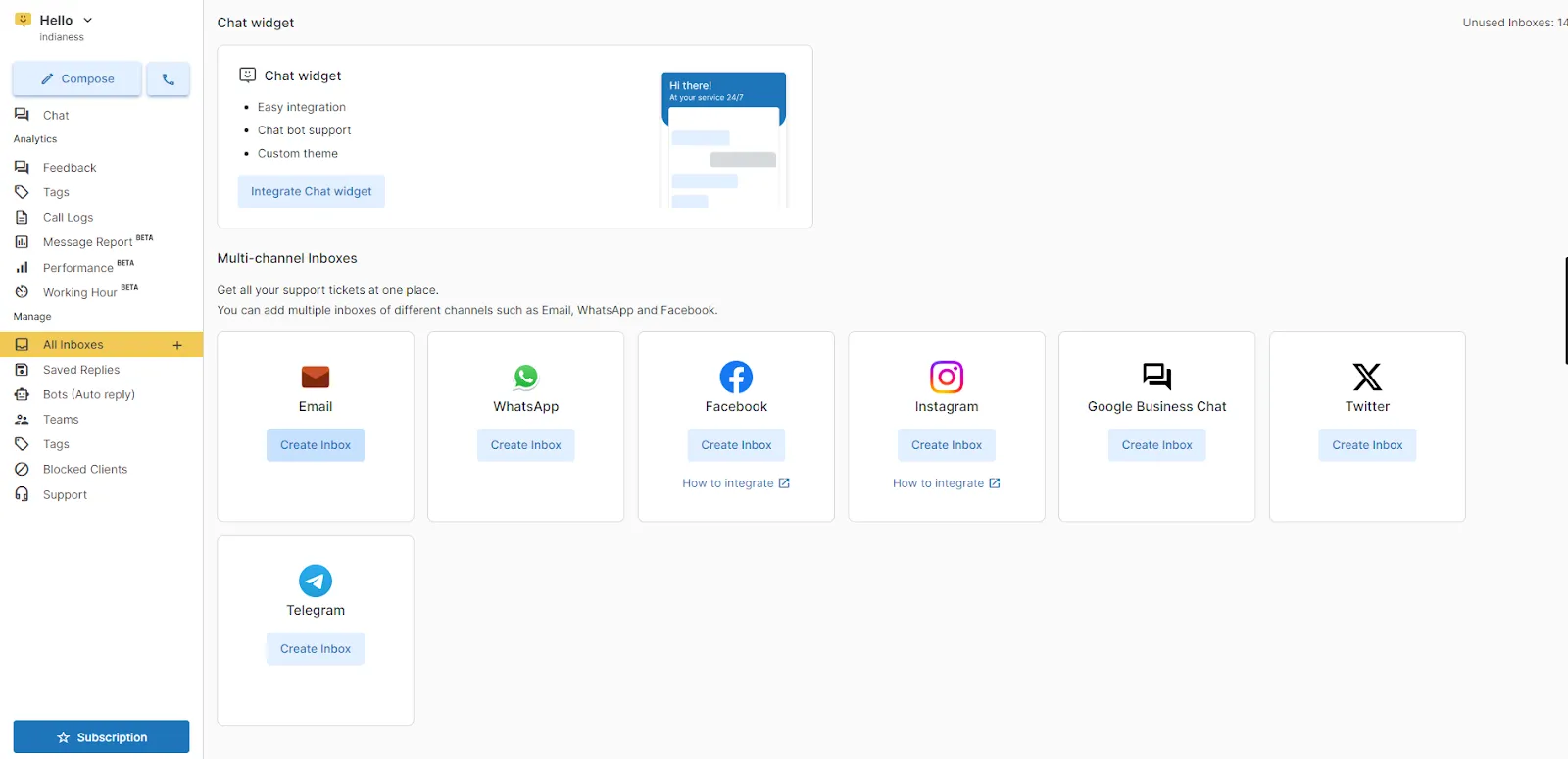
Step 3: Click on Gmail to Create Inbox.

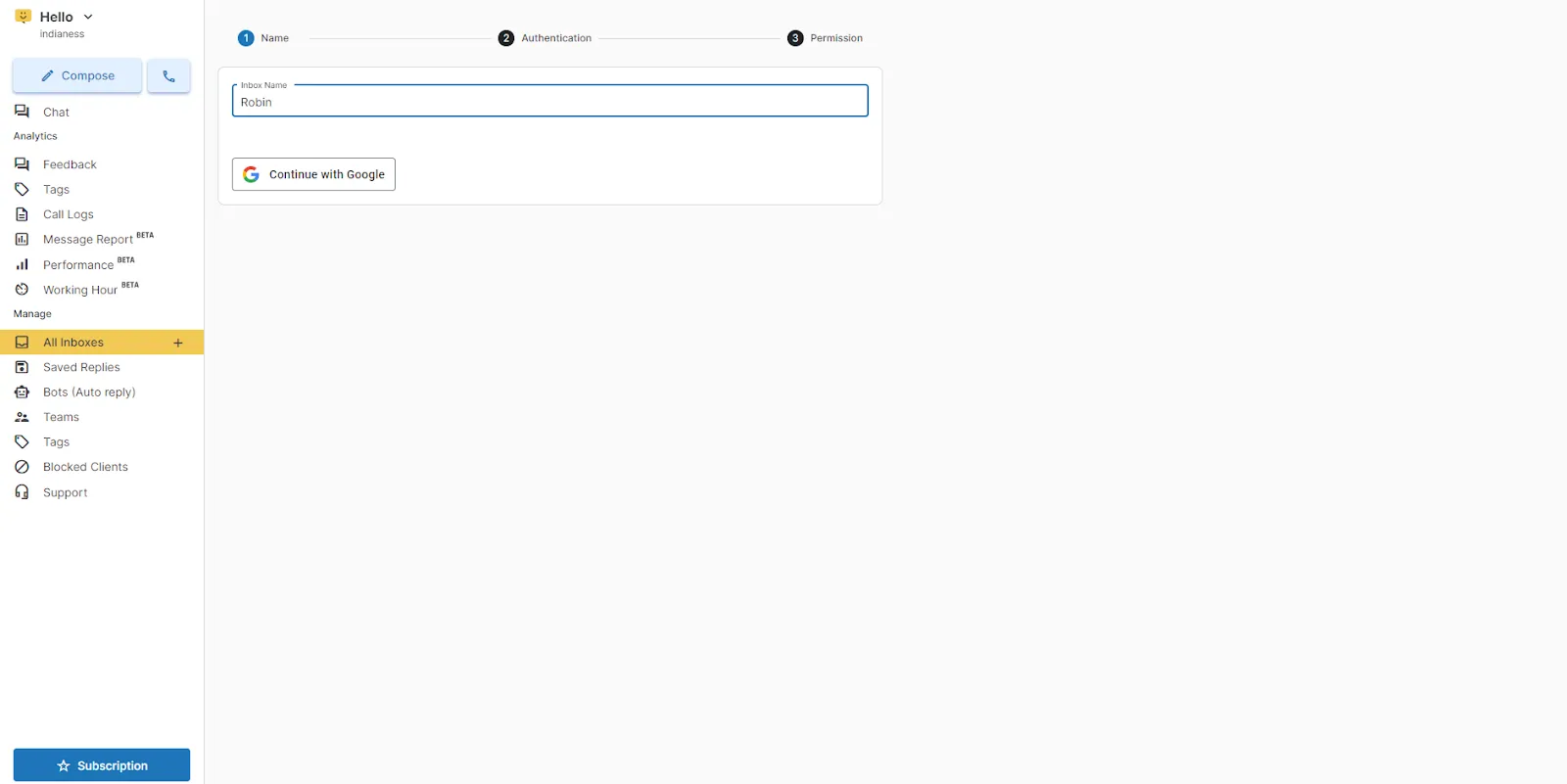
Step 4: Enter the name of the Inbox according to your preference. After that click on Continue with Google.
Step 5: Select the Email Id through which you want to integrate the Gmail Inbox.

Step 6: Click on the allow button to enable the Gmail integration.

Step 7: Give permission to you team and agents to see this inbox tickets.

Step 8: Your Gmail Inbox is being integrated with Hello.

Step 9: Click on the Inbox name in the side panel to view all the mails.

Step 10: You can view all the incoming mails in the open section of your Inbox.

Step 11: You can also reply to the mail directly from the Hello Inbox.

You can also change the “To“ email address while replying to a received email.

After creating a Gmail inbox, you can view all new emails in your inbox without threads. You can see all the emails received after setting up your Gmail inbox.